Shared wedding photo album: how to set one up

Shared wedding photo album: Google Photos, iCloud, WhatsApp or an app? The options, a step-by-step setup and how to get every guest to join in.
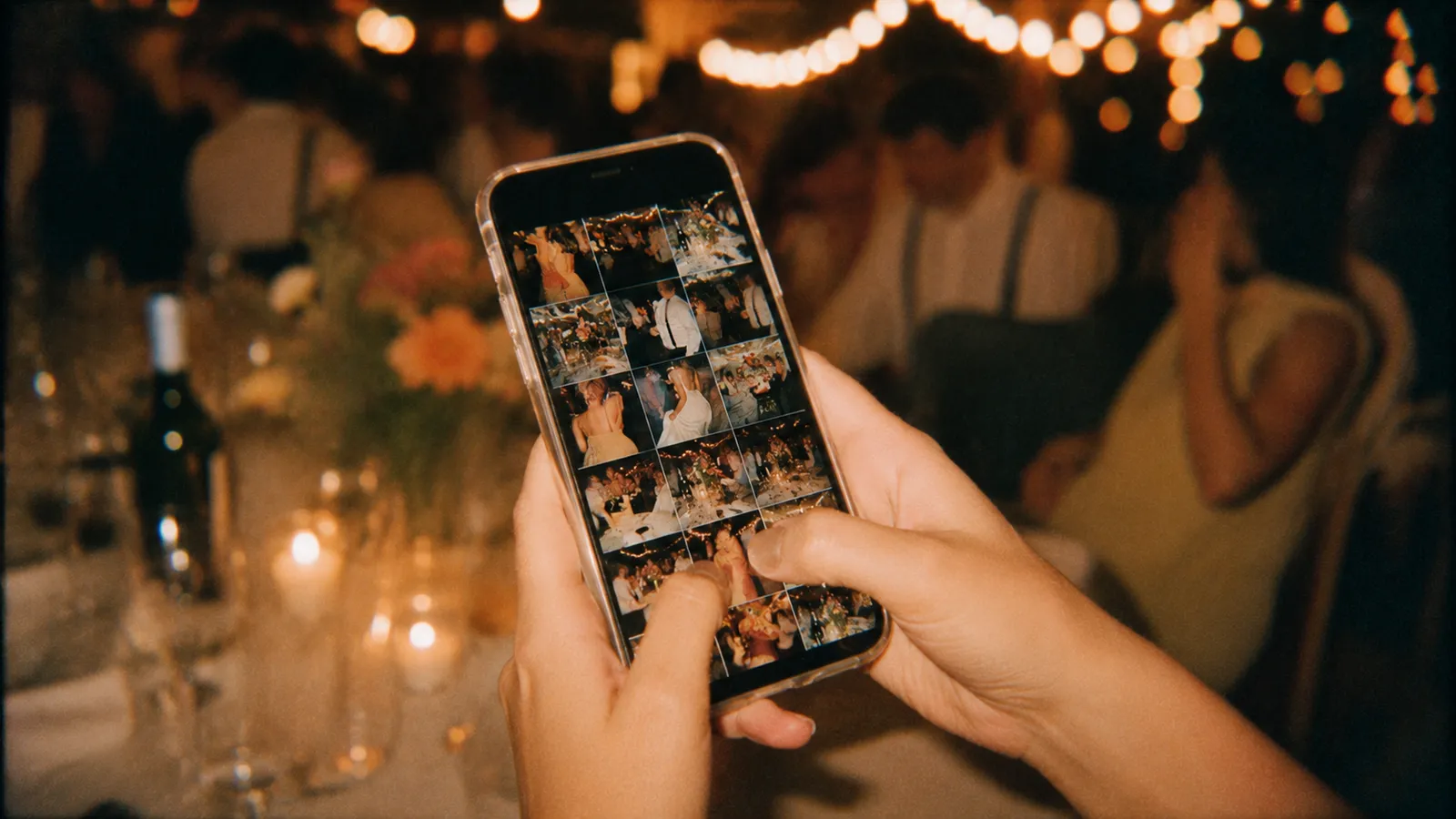
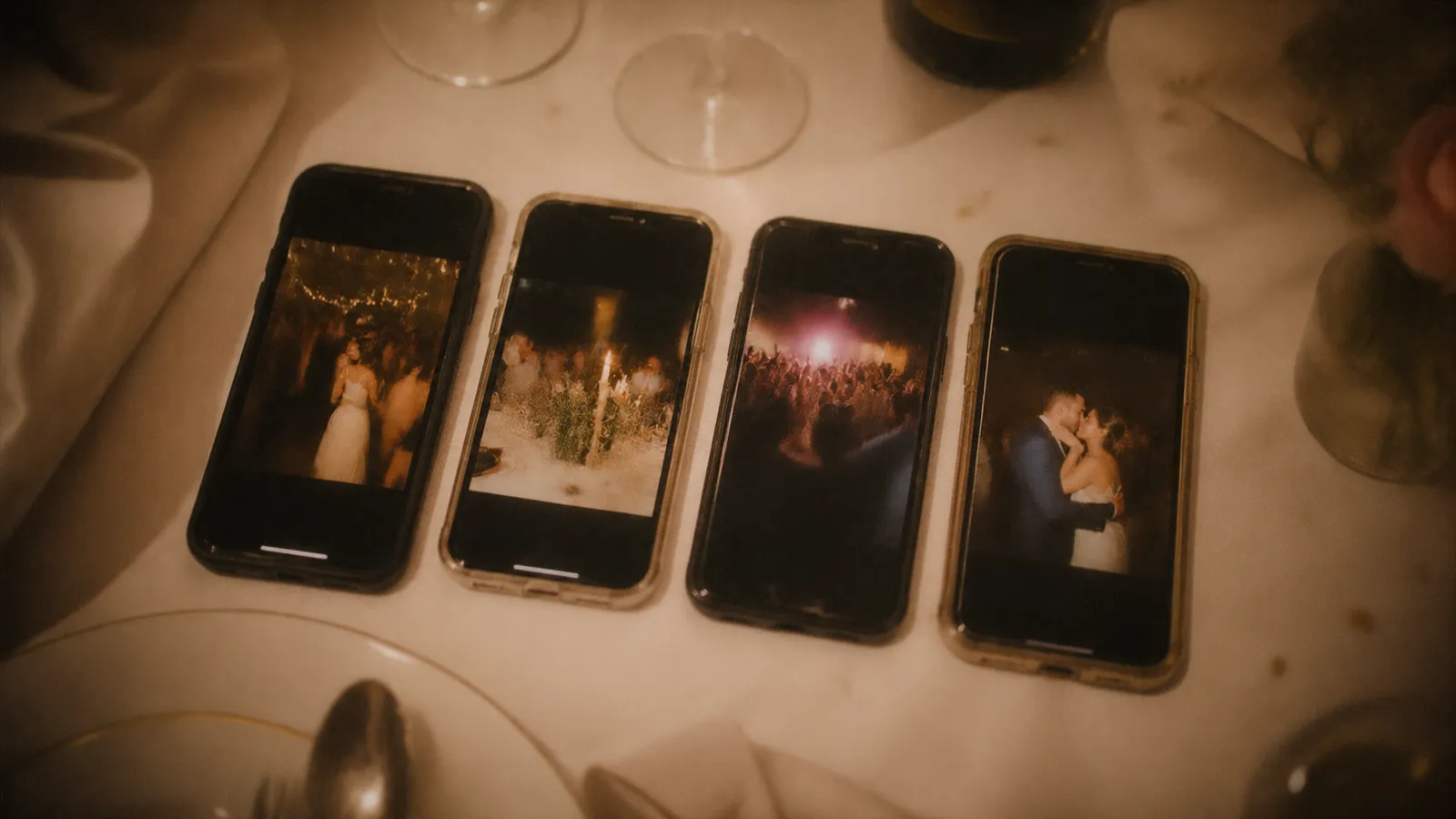
The day after a wedding, the same question always comes up: “Can you send me your photos?” Every guest took a handful of pictures, and they are now sleeping on eighty different phones. A shared wedding photo album solves this: one place where all the guests’ photos end up, which everyone can browse and download.
On paper, it is simple. In practice, most shared albums stay half empty. Here is how to choose the right tool, set it up, and above all make sure your guests actually take part.
What exactly is a shared wedding album?
It is a private online album that every guest can add photos to and everyone can view. The difference from the photographer’s album matters: the photographer delivers a polished selection, while the shared album gathers everyone’s point of view. Grandma on the dance floor, the best man’s selfie at 2am, the cake seen from the children’s table.
A good shared album ticks four boxes:
- Everyone can access it, whatever their phone (iPhone or Android).
- Adding a photo takes seconds, with no account to create.
- The album is private: only people with the link can see it.
- You can download everything in one go to keep it.
The options, and what they are worth
A shared Google Photos album
Free, and photo quality is well preserved. The catch: adding photos requires a Google account. Some of your iPhone guests don’t have one, or can’t remember it. You also have to send the link to people one by one.
A shared iCloud album
Very handy between iPhone users, as it is built into the Photos app. But guests on Android can’t add their photos to it. At a wedding of a hundred people, that leaves a lot of people out.
The WhatsApp group
Everyone already has it. But photos are compressed when sent, the thread mixes photos, messages and voice notes, and finding a picture three weeks later is quite a feat. We cover all this in WhatsApp, Google Photos or a dedicated app.
Wedding “gallery” apps
These are online albums designed for weddings: a QR code, a page, and guests upload photos from their camera roll. It is simpler than a Google or iCloud album, and often free or cheap. Their limit is the same as every shared album: they are passive. They wait for guests to remember to upload, and many never do. The overview is in our comparison of wedding photo apps.
The shared disposable camera
This is a different approach: instead of asking guests to upload photos afterwards, you hand them a camera during the party. With Time to Flash, each guest scans a QR code, the camera opens in their browser (nothing to install, no account), and they get a limited number of shots, just like a disposable. They can’t see their photos straight away. The next day, at the time you choose, everything is revealed at once in a private shared album.
The difference from a gallery: here the album is not a folder to fill, it is the result of a game. Guests join in because it is fun during the evening, not because they were asked a favour the next day.
Gallery or disposable: how to choose
Ask yourself one question: do you want to collect the photos your guests already take, or make them want to take some?
- If you mainly want to gather existing photos, with no activity, a gallery is enough. Just plan to remind your guests.
- If you want a photo activity during the party, with a surprise the next day, the shared disposable does both: the game during the evening and the shared album afterwards.
Nothing stops you combining them: the disposable during the party, and a folder in your personal cloud to archive everything, alongside the photographer’s pictures.
Setting up the shared album, step by step
- Pick your tool a month before, not the night before. You will have time to test it with two or three close friends.
- Create the album and give it a clear name (your first names and the date). With Time to Flash, it takes two minutes: number of guests, shots per person, reveal time.
- Test it yourself on an iPhone and on an Android. Take a photo and check that it arrives.
- Prepare the QR code: it is the way into the album. You can create a personalised sign with our wedding QR code generator.
- Print and place the signs where guests wait: the bar, the tables, the toilets, the cloakroom. The best spots are covered in where to put the QR code.
- Appoint a helper: a bridesmaid or groomsman who knows the album and can help a lost guest.
Getting guests to take part
This is where it all happens. A shared album nobody knows about stays empty, whatever the tool.
- Announce it beforehand: a line on the wedding website or in your last message to guests. They will arrive prepared.
- Put up plenty of QR codes: a single QR code at the entrance goes unnoticed. One on every table, and everyone scans it while waiting for the starters.
- Make an announcement on the mic: fifteen seconds during the drinks reception or at the start of dinner is enough. “Scan the QR code on your table, you have ten shots, and we’ll see everything tomorrow morning.”
- Give a simple rule: a number of photos, a reveal time. Clear rules make people want to play.
More tips for involving every guest in how to share wedding photos with all your guests.
The mistakes that leave a shared album empty
If you have ever created a shared album for a party, you know the story: a link sent out, three people uploading, then silence. These mistakes come up almost every time:
- Sending the link after the party: the next day, everyone is tired, heading home, back at work. The message gets lost. The album has to exist and be known during the evening.
- Requiring an account: every extra step loses participants. Nobody creates an account or digs out a password on a wedding night.
- Forgetting some of the phones: a tool that only works on iPhone, or only on Android, leaves part of the family out.
- Not explaining anything: a QR code with no sentence around it doesn’t say what it is for. Write clearly on the sign what happens when you scan it.
- Relying on goodwill: uploading photos to an album is doing someone a favour. Taking photos with a disposable camera is playing. Playing motivates people far more than favours.
When should the album become visible?
Two schools of thought. With a classic gallery, photos are visible as soon as they are uploaded: you can look at them during the party, but the surprise is gone and some guests spend their evening scrolling.
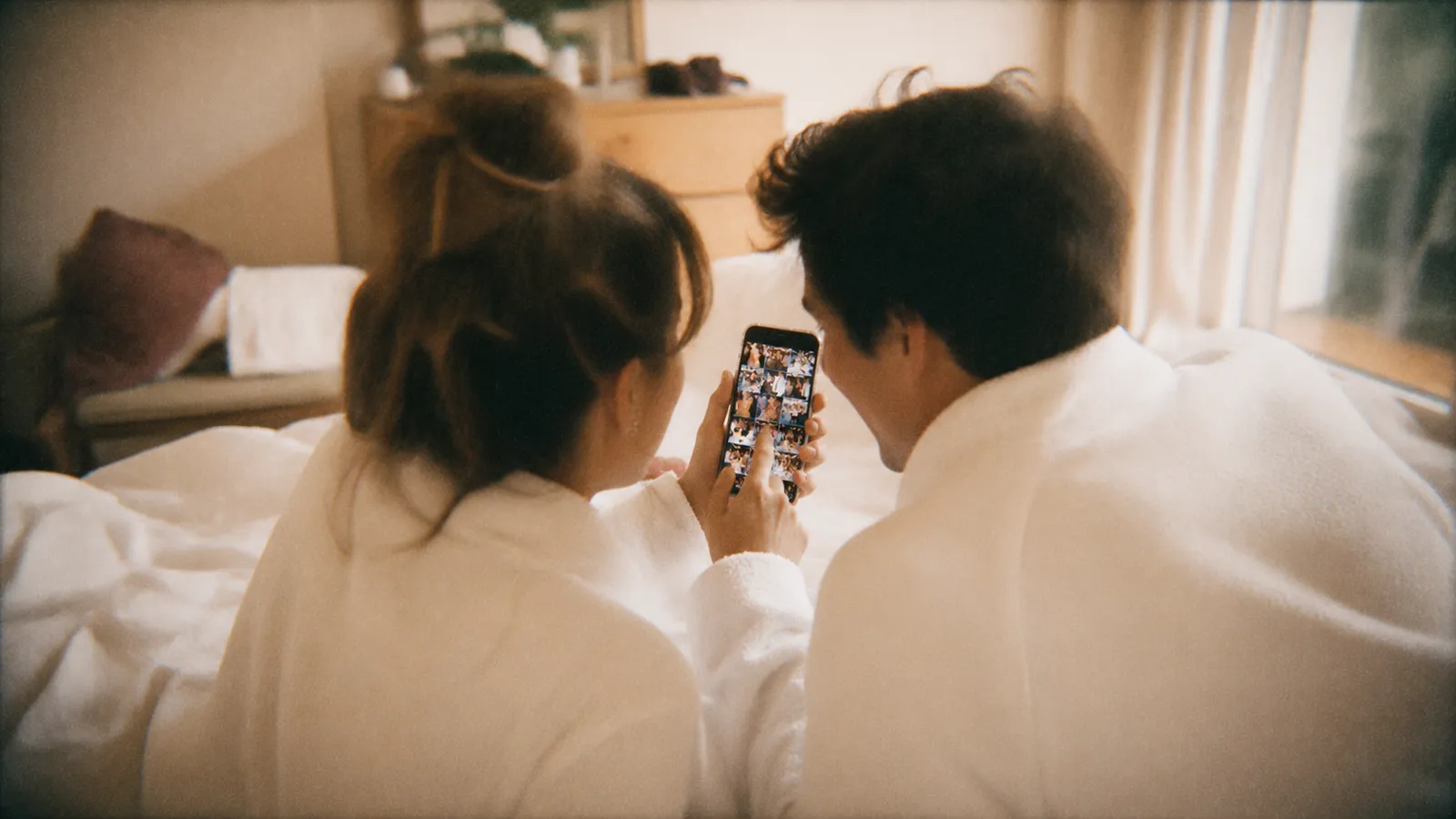
With a delayed reveal, nothing is visible before the chosen time. The next morning, at brunch, or on the evening you get back, everything appears at once. That is when everyone sends photos back and forth, and discovers what happened at the other end of the room. A tip: pick a time when guests are awake and free, for example 10 or 11am the next day.
Before the reveal, as the organiser, you can hide an awkward photo. Handy when a cousin caught the wrong moment.
How to keep the shared album
A shared album is not an archive. Services change, links expire, albums get deleted. On Time to Flash, the album is kept for six months, and you are warned before it is deleted. To keep it forever:
- Download all the photos in one go, in the days that follow.
- Store them in two places: your computer and your personal cloud, for example.
- Print the best ones: a photo book or a few prints, ordered straight from the album.
Want to see what it looks like on the guests’ side? It is all explained on our wedding guest photos page.
Frequently asked questions
How do I create a shared photo album for a wedding?
Choose a tool (Google Photos or iCloud album, gallery app or shared disposable camera), create the album, test it on an iPhone and an Android, then print a QR code for your guests to scan on the day. With Time to Flash, setup takes two minutes and no guest needs an account.
Do guests need to install an app?
Not necessarily. A Google or iCloud album requires an account to add photos. Time to Flash works in the browser: guests scan the QR code, type their first name and take their photos, without installing anything.
Does a shared iCloud album work with Android?
An Android guest can view a publicly shared iCloud album through a link, but cannot add photos to it. For a wedding with phones of every brand, a tool that works in any browser is a better choice.
How long does the shared album stay online?
It depends on the service. On Time to Flash, the album is kept for six months and you are warned before it is deleted. Either way, download all the photos in the days that follow and store them in two places.
Can a photo be removed from the shared album?
Yes. On Time to Flash, the organiser can hide an awkward photo before the reveal so nobody sees it. If a guest asks for a photo of them to be removed, simply remove it.